Category List
This is the list of all casino categories that are available in the client application.
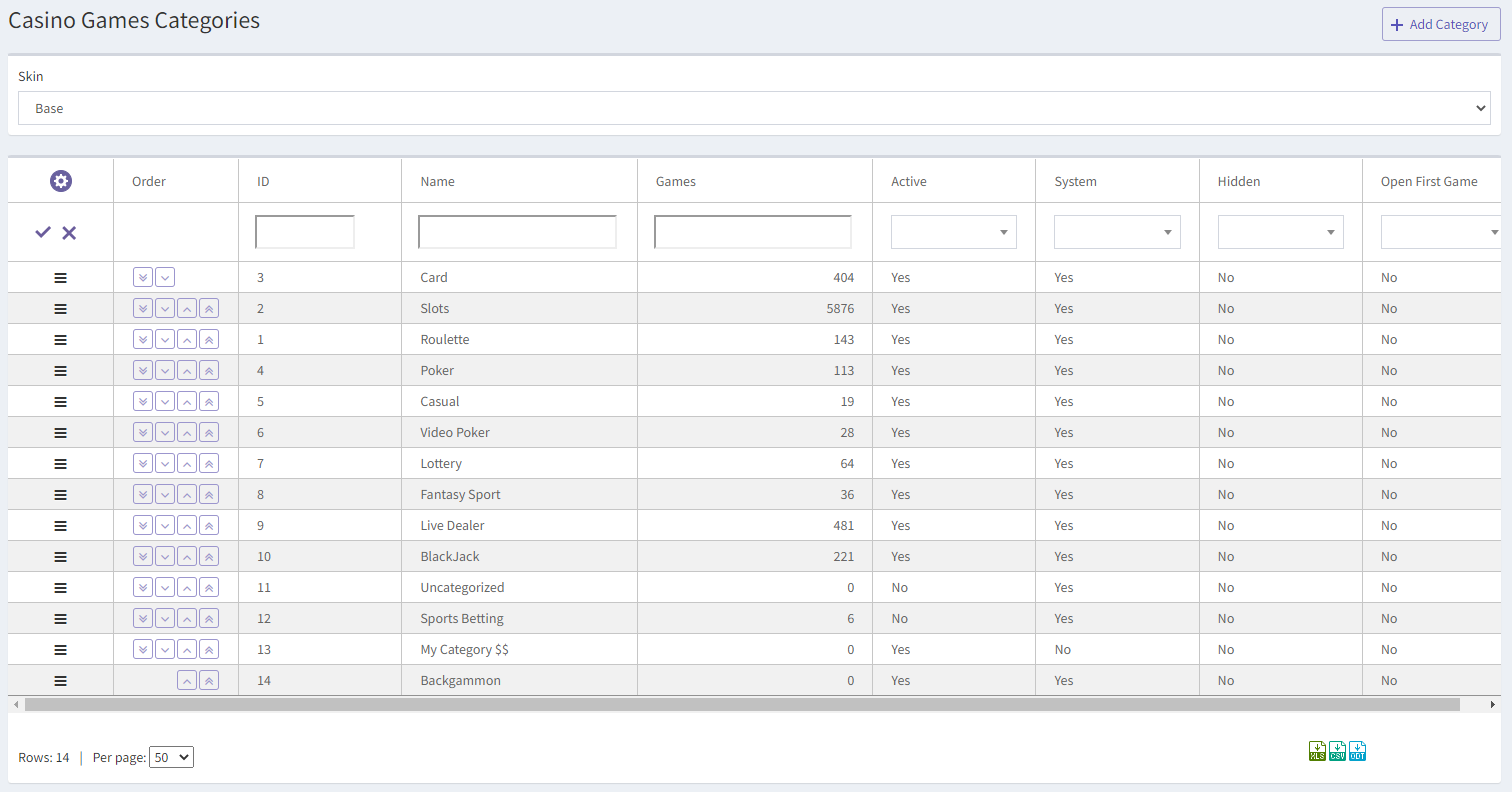
On top of the page, you can see Skin drop-down list. You can select the skin, which categories you would like to see, here. The arrangement and settings of categories can be different for skins.
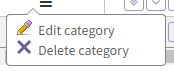
Each category can be edited, and custom categories can be deleted:
The following columns are included in the list:
- Order – the order of the casino categories in the lobby. You can modify it with the buttons from this column;
- ID – the unique ID of the category;
- Name – the title of the category;
- Games – the number of games, included in the category;
- Active – shows if the category is active;
- System – shows if the category is system of custom. Note: You cannot delete System categories;
- Hidden – shows if the category is hidden in the client application;
- Open First Game – if this parameter is enabled, the first game of this category will be opened upon clicking it instead of the list of games. It can be useful if the category includes only one game.
If you would like to add a new category, click on the Add Category button in the top right corner of the page. Please note that you cannot add a system category. You also cannot delete or change alias in any of the system categories.
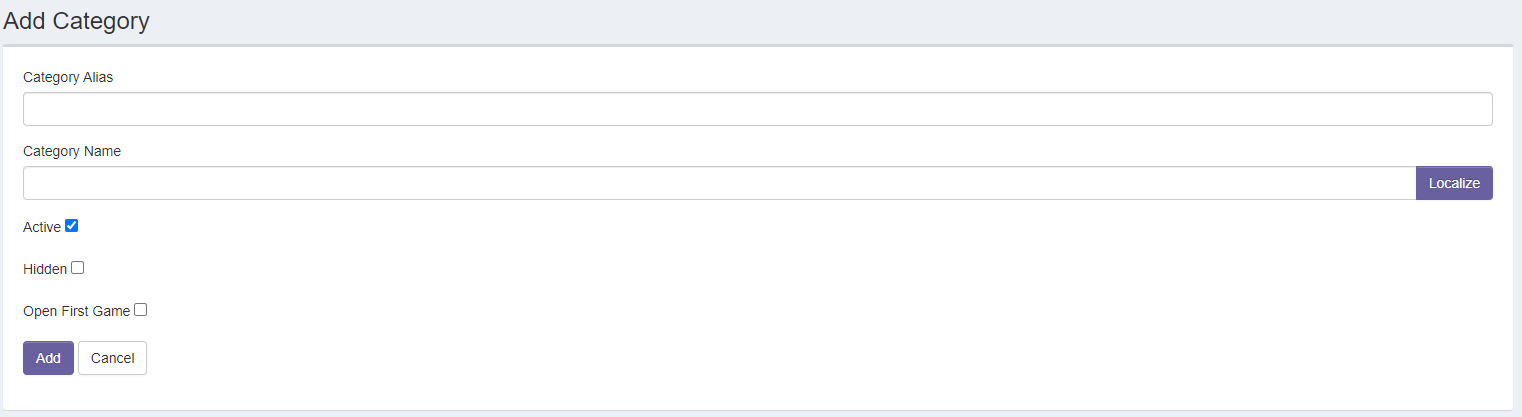
- Category Alias – it must be identical to the Category Name for the custom categories.
- Category Name – category title that is visible in the client application.
- Active – shows if the category is active.
- Hidden – shows if the category is visible in the client application.
- Open First Game – if this parameter is enabled, the first game of this category will be opened upon clicking it instead of the list of games. It can be useful if the category only consists of one game.
The Per Page drop-down list allows you to choose how many rows should be displayed on each page.
The list can be downloaded as .XLS, .CSV or .ODT file with the icons  Note: The maximum number of items in the downloaded report is 100000.